A carousel is one idea told across several swipeable slides. For an app it works well because you can show a problem, a bit of proof and a next step without needing a video or a face. Here is the process, from the idea to the post.


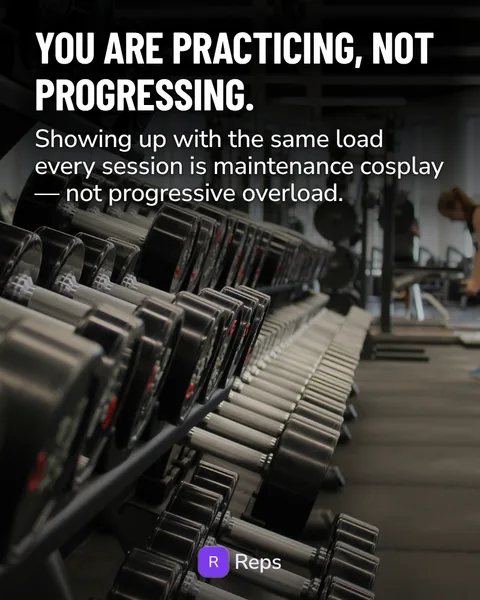
The first three slides of a seven-slide carousel Slidepost made for the demo app Reps. The same shape works for any app.
1. Decide the one idea
One carousel makes one point. If you cannot say it in a sentence, it is two carousels. “Why doing the same weights for eight weeks is not consistency” is an idea. “Everything about training” is not.
Start from your readers’ problem, not from your feature list. Your app comes in at the end as one way to deal with it.
2. Choose a format
The format is the shape of the story: a list, a comparison, a receipt, a text thread, a ranking. Picking one first saves you from staring at a blank slide. If you want options, see 12 carousel ideas for app makers.
3. Write the cover first
The cover decides whether anyone swipes. Make one concrete claim or ask one question your reader already has. Keep it short enough to read in a second. Write five versions and keep the one you would stop for yourself.
The profile grid can crop the edges of a cover, so keep the important words away from the sides.
4. Plan the slides
Six to eight slides is a comfortable range for a first carousel. It is a rule of thumb, not a rule: use as many as the idea needs and no more.
- Cover. The claim or question.
- The problem. Say what is going wrong, in the reader’s words.
- The middle. One thought per slide, each one a reason to read the next.
- The turn. What to do instead, or what is really going on.
- The last slide. One next step.
5. Keep the design boring on purpose
You do not need a clever design. You need a consistent one. Use one headline font, one body font and your brand colour. Make the text big enough to read on a phone without zooming. Use the same layout rhythm in every carousel so your posts look like they belong together.
Export at 4:5 portrait. A tall frame takes up more of the feed than a square. Slidepost renders slides at 2000 by 2500 pixels.
6. End with one next step
Tell people to do one thing: save the post, send it to a friend, or open the link in your bio. If you give three options, most people pick none. Your app belongs on the last slide, not on every slide.
7. Write a caption that does its job
The first line is what shows before the caption is cut off, so say what the carousel is about there. Add two or three short sentences that give context without repeating each slide. A couple of relevant hashtags are fine. Keep it short.
8. Export and post
Download the slides in order, upload them in the Instagram app and paste your caption. Check the order before you post, and check that the first slide still looks right small, as it appears on your grid.
Doing this with Slidepost
The manual route takes an evening per carousel: idea, copy, layout, sizing and caption. Slidepost does those five jobs from one link.
- Paste your App Store or Google Play link. Slidepost reads the name, icon, store text and screens and builds a brand kit from them.
- Open New carousel and pick a layout from the library.
- Edit any slide: text, font, colour or photo. Roll a new line if one is off.
- Download a ZIP with the slides as JPGs and a
caption.txt.
A new AI-written carousel costs 3 credits, so the 15 free credits each month are enough for about five. You decide what goes out and when. Details are in the docs.